Cute Magick Docs
Welcome to the documentation!
This will explain everything about how Cute Magick works, so you can feel at home with it.
repo: https://github.com/pinkhairs/cutemagick
www: cutemagick.com
email: me@diana.nu
image: ghcr.io/pinkhairs/cutemagick:main
On this page
What is Cute Magick
Cute Magick is for people who want to build real websites, but hit a wall with modern infrastructure.
If you learned HTML and CSS once and drifted away, or if you know how to code but don’t want to fight servers, pipelines, and configuration just to pick up a project or experiment, this is for you.
Cute Magick gives you a real website building environment that you can use immediately, without requiring you to understand or adopt traditional infrastructure culture first.
It starts from a simple idea: your computer is already a server, and the web is already accessible. Cute Magick exists to make that feel true again.
The ache for home lives in all of us, the safe place where we can go as we are and not be questioned.
—Maya Angelou
It’s a website platform that you can finally call home. More than a website platform, it’s a safe place to experiment and express yourself. You can create as many sites as you want. Every change is remembered. Undo is built in. You can run PHP, Python, Node, whatever—and time-travel through your site's entire history. It's self-hosted and Git-backed—you own your data, and you can't permanently break anything.
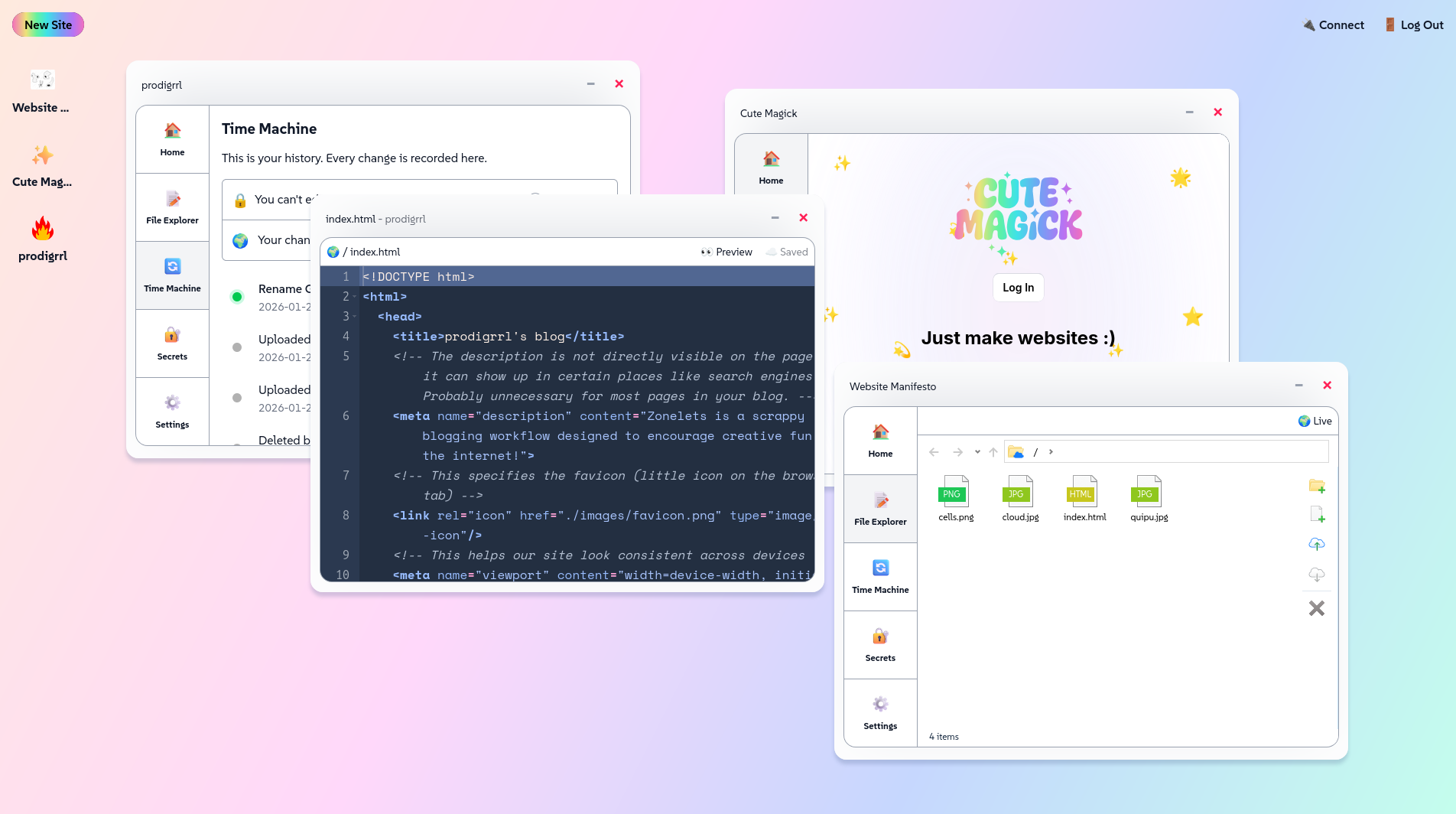
Cute Magick gives you an environment to create, build, and run sites with server power. It’s different than a static site host because it lets you run more than HTML & CSS. The platform also gives you a (cute and customizable) workspace for editing multiple sites and files on the same screen. This includes file, database & secrets management, code editing, private version previews, and a time machine—more on that later.
Getting Started
To get started, there are just a few things you need prepared.
What you need
- Docker installed (get Docker)
- A terminal (whichever, default is fine)
- 5 minutes
Installation
Cute Magick is an open source software. The source code is available to everyone for free. You can take it and run (it on your server). Let’s talk about how you’d do that, and then alternatives if you’d rather Just Code™
Click the little arrow on the left to expand sections:
How to self-host (click on the little arrow on the left)
There are no strong opinions about how you do this. Use whatever you already know. Cute Magick just needs to be reachable at some port.
System requirements
The Docker container itself is light, not more than 2 GB. It's Node 20+ some basic tools (PHP, Python, Lua, ImageMagick).
Minimum:
- 512 MB RAM
- 1 GB disk space (more if you have large media files)
- Any CPU from the last 10 years
Recommended:
- 1 GB RAM
- 2+ GB disk space
- Anything that can run Docker
For 3 sites (~100 MB each):
- ~300 MB for your sites
- ~200-300 MB for the Docker image
- ~100-200 MB for SQLite databases and Git history
- Total: ~1 GB comfortably
If you run out of space, download your sites from Cute Magick (they’re just files) and import them into a Cute Magick on a bigger drive.
A Raspberry Pi 4 can run this fine. The cheapest tier VPS is overkill. Your laptop won't notice it's running.
Common setups (click the little arrow on the left)
-
Laptop only
Cute Magick is a Docker container. If you have Docker on your computer, running this is the shortest path to getting Cute Magick up & running.
docker run -p 3000:3000 -v $(pwd)/cutemagick:/app/site ghcr.io/pinkhairs/cutemagick:mainThis creates a folder called
cutemagickin your current directory and starts Cute Magick. Open your browser tolocalhost:3000/adminto set up your account.The repo is also a Node site you can run, but Docker will set you up with all the languages and libraries needed to run Cute Magick that you may not have or want to install on your system.
-
Home server
Same as laptop. If you want it accessible from outside your home network, you'll need to set up port forwarding on your router and point a domain to your home IP. (We'll have a guide for this.)
-
Online
If you want to bring your Cute Magick to the world wide web, you’ll need:
- A server (any VPS like Hetzner, DigitalOcean, or even a Raspberry Pi).
- A domain pointed at that server—you can purchase one from a registrar.
- Something to handle HTTPS like Caddy
We'll have detailed deployment guides for common VPS providers and reverse proxy setups.
How to just sign up for Cute Magick (click on the little arrow on the left)
If you’re interested in having someone else handle the infrastructure and setup, CuteMagick.com has a paid hosting option. The plans are very reasonable because we diabolically hope you “graduate” to self-hosting through familiarization and tutorials. 🤫
Setup and access
Signed up for CuteMagick.com? You’ll receive an email with your admin link to set up your password and other details. You’ll get your admin panel link from there.
If you’re self-hosting, download .env.example, rename it to .env, fill in your details (use bcrypt to hash your password), and place it next to your docker-compose file or pass it to Docker with --env-file
First time tour
After you log in, you’ll see a largely blank workspace (possibilities!) with some buttons along the top.
On mobile, the workspace adapts to your screen. Instead of freeform windows you can drag and arrange, sites stack vertically with the most recently opened at the top. Everything else works the same.
Let’s take a look, from left to right.
- 🌈 New Site: This button is where you create new sites. You can enter either a name or an SSH Git repo URL to import. (See next note.)
- 🔌 Connect: Cute Magick automatically generates a secure SSH key pair for you. This is what you need to be able to connect to your private repositories. More in that in the Guides. This button lets you quickly copy your public SSH key.
- 🚪 Log Out: You can guess what this does, but it basically clears your site’s cookies and redirects you back to the login page. This doesn’t affect any other websites’ cookies.
-
⭐️ Your first website: After you create your first site, you’ll see it with a small icon on your workspace. Go ahead and click it to dive into your new site. There are 5 tabs and a persistent status bar under each site. The status bar contains a link to the live site, a link to your latest preview, and a button called Review Changes with a little badge that counts the number of changes since you last went live. (See “How to go live” below.) As for the tabs:
- 🏠️ Home: Your live site’s preview. You will have multiple versions of your site as you work on it, and this tab shows what the world sees.
- 📝 File explorer: These are your working files. What you see here is private (until you Go Live). More details on the file explorer and its ways later.
- 🔄 Time Machine: This is one of the coolest features in Cute Magick. As you save changes to your site files (creating, editing, uploading, renaming, and deleting) Cute Magick will keep track at every step. You can rewind your working files to any point in time. You can also preview without restoring the files.
- 🔐 Secrets: Have you ever wondered how you’re supposed to store secure information on a website when anyone could just view the source and see whatever you type? Well, this is how you do it. Secrets are how you manage your runtime environment variables which are accessed before HTML & CSS are printed. This screen saves your secrets, such as API keys or passwords (hashed, please) to your site’s hidden .env file which is unique to your site and environment. Unlike other files, this is not versioned or kept in history or exports.
-
⚙️ Settings: This is a collection of settings for your site, including:
- Site name (potentially visible to your audience, if your site’s URL is a path and shows it) and icon URL for Cute Magick
- Site URL—this is either a domain or a path on your Cute Magick install *Domains must have a DNS record CNAME pointing to magick.host before you can save them here.
- Remote repository details for syncing / backing up files
- Password credentials—passwords for sites that are meant to be seen by a select few. These passwords are stored plaintext, not hashed. This is intentionally different from Secrets, which should always contain hashed credentials. If you're logged into Cute Magick as an admin, you'll automatically bypass any non-live site password — no need to enter credentials to preview your own password-protected sites.
About the password feature: This is lightweight HTTP authentication for temporary, ephemeral sites only. Passwords are stored in plaintext. If you need real security, build your own authentication system (we'll have tutorials). This feature is just for convenience—like sharing a portfolio during a job search.
And if you look to the bottom right, two more buttons:
- 🗃️ Archive: For your archived sites—these have the URL removed so they are not reachable.
- ⚙️ Preferences: Set the background image for your workspace and toggle light/dark/auto mode.
What’s next?
At this point, you can explore Cute Magick. The idea is you can’t mess anything up, because everything is rewindable. So go for it. I suggest still finishing reading this documentation, so you can work with the platform instead of fighting it.
Core Concepts
Sites
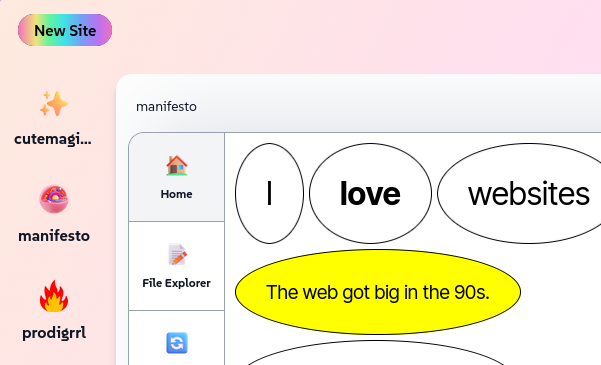
A site in Cute Magick is a folder with files. That's it. No databases to configure, no build pipelines to set up, no deployment rituals. You create a site, you get a folder. Everything your site needs lives in that folder.
Each site has:
- A URL — either a domain (like
yoursite.com) or a path on your Cute Magick install (likeexample.magick.host/mysite)
- Files — HTML, CSS, JavaScript, PHP, Python, images, whatever you want
- A history — every change you make is remembered, automatically when you save
- Two states — working (your private draft) and live (what the world sees)
- Its own secrets — environment variables stored in a hidden
.envfile
- Optional remote backup — you can sync to GitHub, GitLab, or any Git server
One site, many versions
Behind the scenes, your site isn't just one version—it's a timeline. Every time you save a change (create a file, edit a file, upload an image, delete something), Cute Magick creates a snapshot. These snapshots are called versions or commits (more on that in the Time section).
You can preview any version from your site's history. You can rewind to yesterday, or last week, or three months ago. You can make an old version live again. Nothing is ever truly lost.
Sites are portable
Because a site is just a folder, you can:
- Download it and open it on your computer
- Move it to another Cute Magick instance
- Clone it with Git and work on it locally
- Back it up anywhere you want
Your site isn't trapped in Cute Magick. It's yours. The folder is standard. The Git repo is standard. You can leave anytime.
Creating a site
Click the 🌈 New Site button. You can either:
- Name it — Cute Magick creates an empty folder and you start from scratch
- Import from Git — After setting your private key from 🔌 Connect at the top right on GitHub or wherever you’re hosted, paste an SSH Git repo URL and Cute Magick pulls it in
Once created, your site appears as a window on your workspace. Click it to open. That's where you'll work.
Files

Files are what your site is made of. HTML pages, stylesheets, scripts, images, data—anything you'd put on a website can be a file in Cute Magick.
Static vs Dynamic
Files come in two flavors:
Static files are sent to the browser exactly as they are. HTML, CSS, JavaScript, images, fonts, PDFs—these don't change. The browser gets the file, displays it, done.
Dynamic files run code before anything is sent to the browser. PHP scripts, Python programs, Node.js apps—these execute on the server, generate HTML (or JSON, or whatever), and then send the result to the browser.
Cute Magick doesn't care which kind of file you're making. You can mix them freely. An index.html next to a contact.php next to a data.py—all in the same site, all working together.
How files know what to run
The file extension tells Runtime which language to use:
.phpruns through PHP
.pyruns through Python
.jswith a shebang comment at the beginning runs through Node:#!/usr/bin/env node
.luaruns through Lua
.shruns through Bash
.htmlis served as-is
.cssis served as-is
- Everything else is served as-is unless Runtime recognizes it
You don't configure this. You just save a file with the right extension and Runtime figures it out.
Creating and editing files
In the File Explorer tab, you can:
- Create new files — click New File, name it, start typing
- Upload files — drag and drop, or use the upload button
- Rename files — click the name, type a new one
- Delete files — hit the red x button at the bottom right of the action bar, or your computer’s delete key
Every action creates a new version in your site's history. If you delete something by accident, you can rewind and get it back.
What's NOT a file
Secrets aren't files you edit directly—they're environment variables stored in a hidden .env file. You manage them through the Secrets tab, not the File Explorer.
Databases aren’t files you edit like code, even though they are stored as files under the hood—they're SQLite databases you interact with through queries or tools. More on that in the Databases section.
Versions (Time)
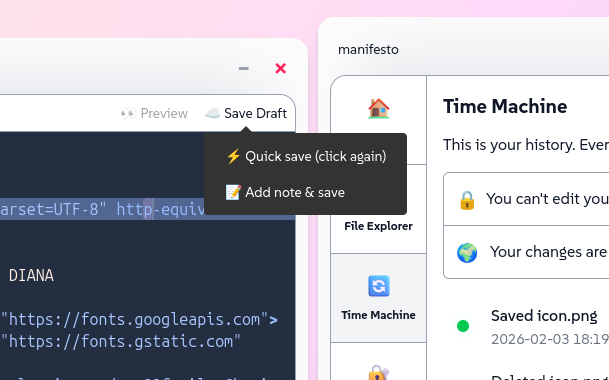
Every time you change something in your site—create a file, edit a line of code, upload an image, rename a file, delete something—Cute Magick takes a snapshot. These snapshots are called versions.
Your site is files plus a timeline. You can go backward. You can see what changed. You can undo mistakes from yesterday or last month. Nothing is ever truly lost.
How versions work
When you save a change, Cute Magick automatically creates a perfect snapshot version with:
- A timestamp — when the change happened
- What changed — which files were added, edited, or deleted
- A message — a note describing what you did (you can edit this)
You don't have to think about it. Versions happen in the background. But they're always there when you need them.
The timeline
Open the Time Machine tab and you'll see every version, newest first. Click any version to preview it—you'll see your site exactly as it was at that moment.
If you want to bring an old version back, you can restore it. This doesn't delete the newer versions—it creates a new version that copies the old one. Your timeline stays intact.
Git under the hood
Versions are stored using Git. If you know Git, you can open a terminal and run any Git command you want—your site is a normal Git repo. If you don't know Git, that's fine. The Time Machine handles everything.
In the future, we’ll implement a “push → instant go live” per-site option.
Secrets
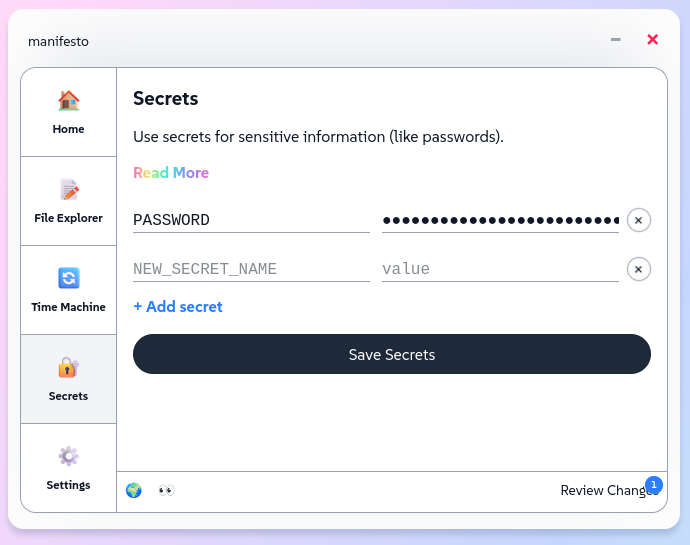
Secrets are how you store sensitive information—API keys, passwords, tokens, database credentials—without exposing them in your code.
The problem
If you write an API key directly in an HTML or PHP file, anyone who views your source code (or clones your Git repo) can see it. That's bad.
The solution
Secrets live in a hidden .env file that's unique to your site and environment. Your code references the secret by name, not by value. The actual value stays hidden.
How to use secrets
Go to the Secrets tab in your site. Add a key-value pair:
- Key:
API_KEY
- Value:
your-secret-api-key-here
In your code, access it like this:
PHP:
$apiKey = $_ENV['API_KEY'];
Python:
import os api_key = os.getenv('API_KEY')
Node.js:
const apiKey = process.env.API_KEY;
Your code never contains the actual key. It just asks for it at runtime. The secret stays in the .env file, which is never committed to Git.
What secrets are NOT
Secrets aren't files you edit in the File Explorer. They're managed through the Secrets tab.
Secrets aren't versioned. They're not in your Git history. They're not in exports. If you download your site, the .env file isn't included.
This means secrets are tied to the environment where your site runs. If you move your site to a new Cute Magick instance, you'll need to re-enter your secrets there.
Hash passwords
If you're storing passwords as secrets (for example, a database password—specifically passwords), hash them first using bcrypt.
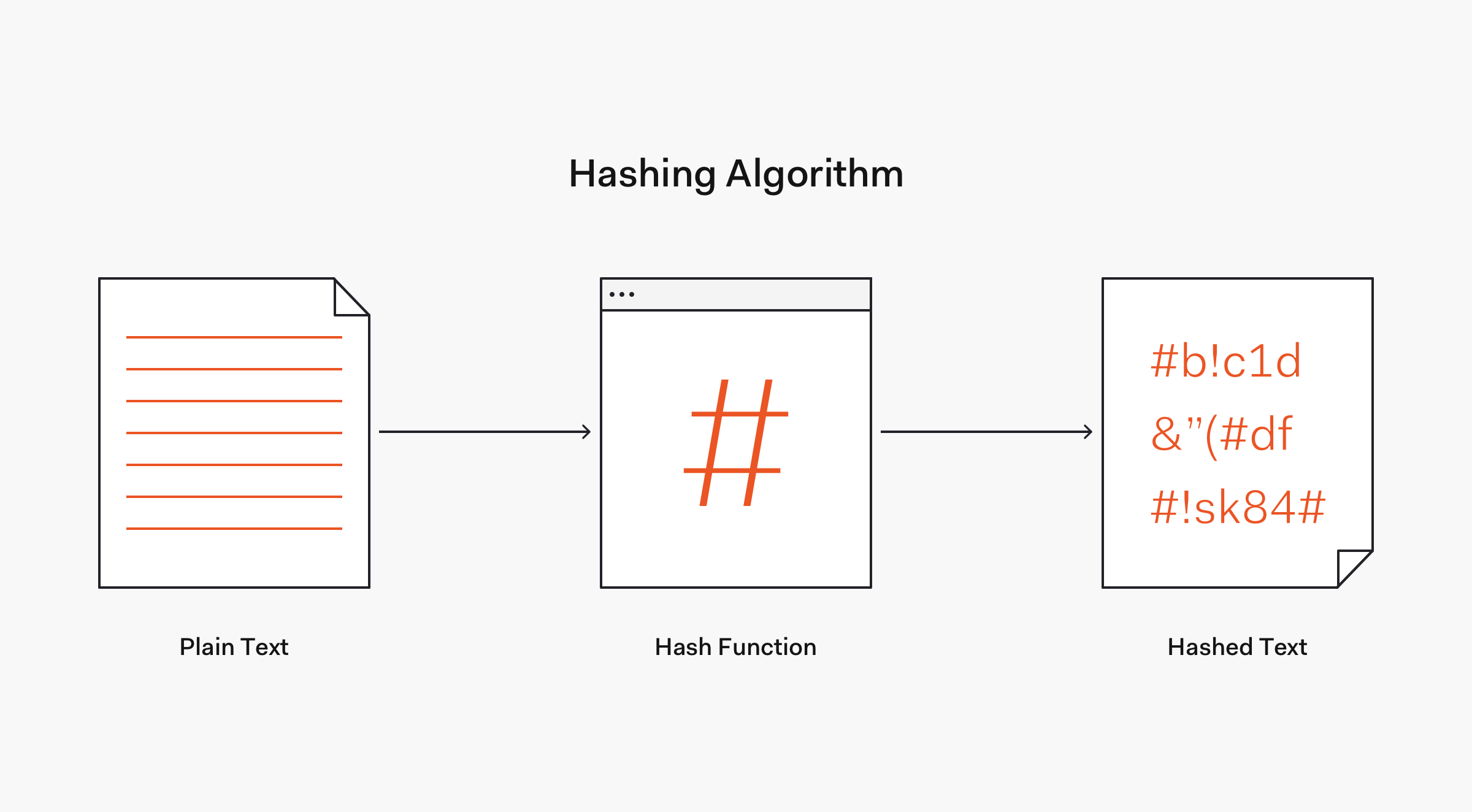
Why this matters
Secrets let you share your code publicly (via Git, via export) without exposing sensitive data. Your site can be open source and you won’t have to worry about scrapers. Your API keys stay private.
Databases
Each site can have SQLite databases—as many as you want. SQLite is a lightweight database that lives in a single file—no separate server, no configuration, just a file in your site's folder.
Why SQLite
SQLite is simple. You don't need to set up MySQL or PostgreSQL or manage credentials. You just create a database file and start using it.
It's also portable. Your database is a file. You can back it up, copy it, move it to another machine. It goes wherever your site goes.
Creating a database
Databases are just files with a .db or .sqlite extension. You can:
- Create them through the Databases tab
- Upload existing database files through the File Explorer
- Create them programmatically in your code
Once you have a database, you can run SQL queries, view tables, and manage data through the Databases tab.
Using a database in your code
Your code connects to the database file like any other SQLite database:
PHP:
$db = new PDO('sqlite:database.db');
Python:
import sqlite3conn = sqlite3.connect('database.db')
Node.js:
const sqlite3 = require('sqlite3');
const db = new sqlite3.Database('database.db');
The path is relative to your site's folder.
Databases and versions
Databases themselves are not tracked in Git.
The file nor the contents of the database (the actual data inside) don't get versioned. If you add a row to a table, Git doesn't track that change.
This is different from code files, where every update creates a new version.
Persistence across versions
When you Go Live, your database stays consistent. Cute Magick uses links (symlinks) to make sure your database file points to the same data whether you're viewing working or live.
This means your live site and your working site share the same database. If you add data while editing, it shows up on the live site immediately. This is usually what you want—you don't want two separate databases getting out of sync.
Before a database can be live, you have to deliberately make it live. Once it is live, the symlink is created. If you write data to your database and then publish it, your pre-live changes will be lost.
If you do want to version your data, export it to a file (like a JSON dump or SQL export), save that file in your site, and commit it. Then it's versioned like any other file. It’s very possible to automate this process within Cute Magick. (We’ll write tutorials.)
Cute Magick itself uses a separate internal database at /data/cutemagick.db, which stores records of your sites for the platform.
Remotes
A remote is a Git repository somewhere else—GitHub, GitLab, your own Git server—where you can back up your site's history.
Remotes are optional. Your site works fine without one. But if you want off-site backups, or if you want to collaborate with others, or if you just like having your code on GitHub, remotes let you do that.
Setting up a remote
Go to the Settings tab for your site. Under "Remote repository details," you can add:
- The Git URL (SSH format:
git@github.com:username/repo.git)
- Branch name (usually
mainormaster)
First item note: Cute Magick automatically generates an SSH key pair for you. Click the Connect button at the top of your workspace to copy your public key, then add it to your Git provider (GitHub, GitLab, etc.) so Cute Magick can push to your repo.
Pushing and pulling
Once your remote is configured, you can:
- Push your site's history to the remote (backs up all your versions)
- Pull changes from the remote (syncs updates from elsewhere)
This happens manually—Cute Magick doesn't auto-sync. You decide when to push and pull.
Why use a remote
- Backups — if your server dies, your site's history is safe on GitHub
- Portability — you can clone your site anywhere and keep working
- Collaboration — multiple people can work on the same site
- Standard Git workflow — if you want to edit locally in VS Code and push, then pull in Cute Magick, you can.
What gets pushed
Everything in your Git history: files, versions, commit messages.
What doesn't get pushed
Secrets are never pushed. Your .env file stays local.
Database contents and files aren’t pushed either.
Your tools
Site Panel
The /adminsite panel is only served on the domain set as ROOT_DOMAIN in your environment configuration. This means your admin interface is tied to a specific domain — requests to any other domain or IP won't load it.
In your .env:
ROOT_DOMAIN=yourdomain.com
# Port is optional: ROOT_DOMAIN=yourdomain.com:3000
# No protocol — just the domain and optional port
If you're using Cute Magick's hosted service, this is set for you automatically. If you're self-hosting and the admin panel isn't loading, check that ROOT_DOMAIN matches the domain you're actually using to access Cute Magick.
File Explorer
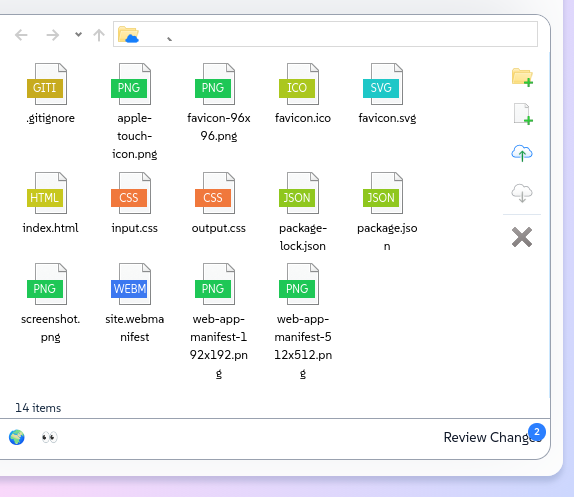
The file explorer should remind you of a desktop file explorer. At the top there are ways to navigate between folders, while the right has common actions for managing files.
How to manage your files
- Create a file: Upload a file, or hit the “new page”-looking button on the right, the second one down.
- Upload a file: Drag & drop or click the “cloud up” button, third one down.
- View or edit a file: Double-click or tap the file icon. If it’s an editable text file (including code) it’ll open in a new window for that editor. Otherwise…
- Download a file: If you double-click a non-editable file, it will download it. In the future it will behave differently for files viewable in the browser (like images, mp3s, videos) and other non-editable files (like SQLite databases)—soon the former will open in a new browser window instead of downloading.
- Rename a file: Double-tap or click the file name and start typing.
- Delete a file: You can use the red X at the bottom of the actions right bar. It will delete anything you select, single or multiple files or folders. You can also use your keyboard delete key.
- Moving files: You can now move files within a site by dragging them into a different folder. Moving files between different sites isn't supported — if you need content in another site, download and re-upload.
- Uploading folders: You can upload folders by dragging and dropping them from your computer into the file explorer. This works across all browsers. Using your browser's file picker to select a folder for upload works best in Chrome. In Firefox and other browsers, the file picker may not correctly capture folder contents — drag and drop is more reliable in those cases.
Code Editor
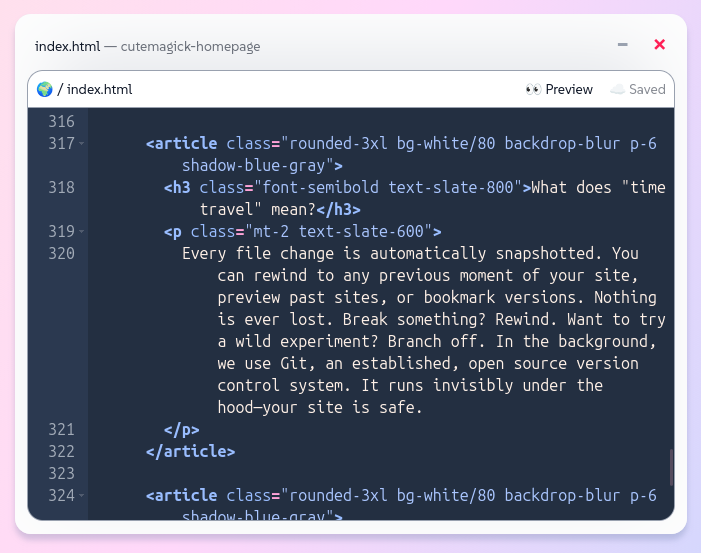
When you open a file, Cute Magick's built-in code editor appears. It has:
- Syntax highlighting (so your code is readable)
- Line numbers (so you can find things)
- Quick save (so you don't lose work)
- Preview file (so you can see your changes before publishing them)
It's not trying to be VSCode. It's enough to write code comfortably without leaving Cute Magick. If you want a full IDE, you can always edit files locally and sync them.
Go Live & Review Changes
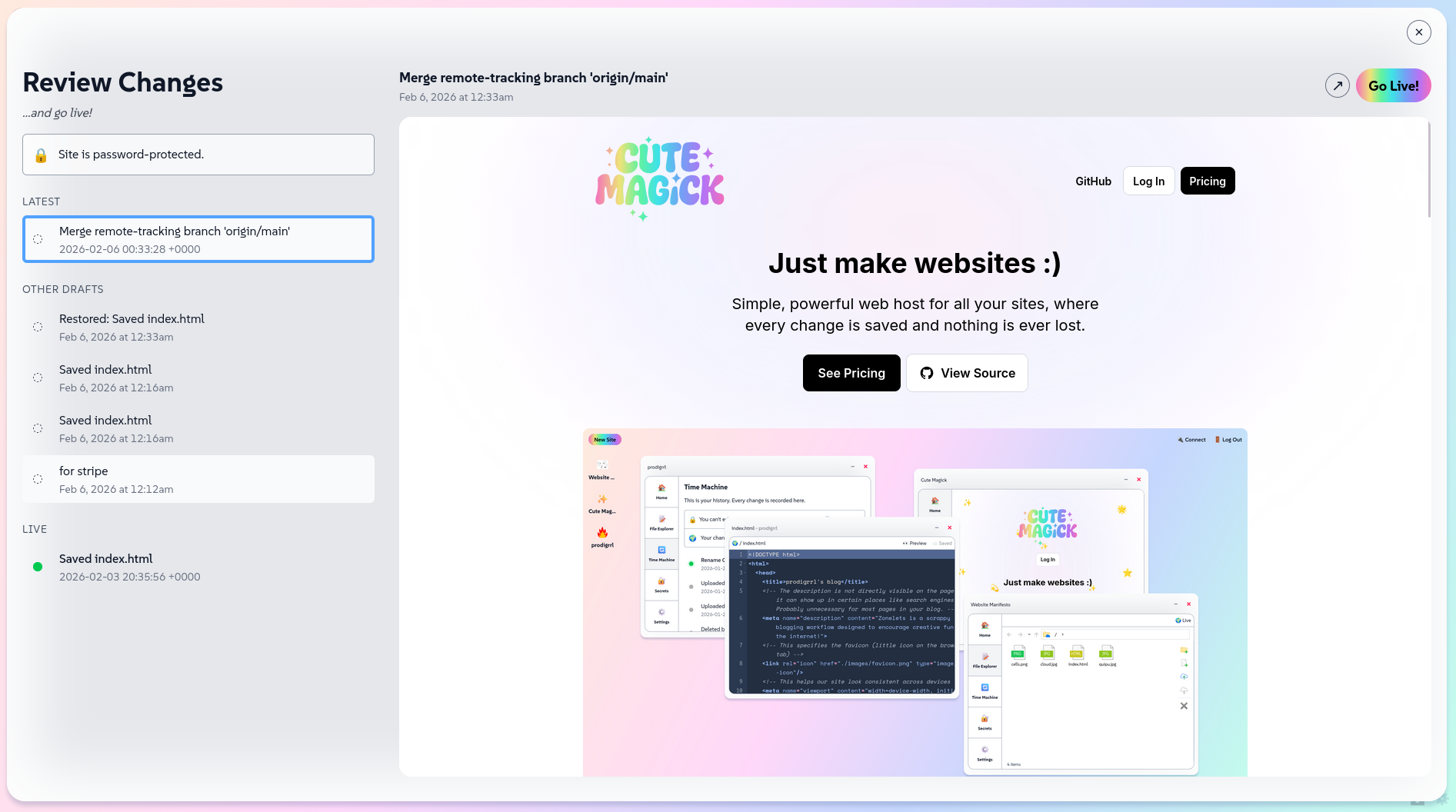
While you make changes to your sites, you’ll see a Review Changes button with an incrementing badge—every time you make a change, the number goes up by one. Clicking it will bring up this Review Changes screen—you can preview publish any version since your live version from here.
Working is your latest, for-your-eyes-only version. When you edit files, working moves forward. Live is a pointer to a specific version. It doesn't move unless you tell it to.
When you click Go Live, you're saying "make live point to this version." Your live site updates instantly. If you keep editing after going live, working keeps moving forward. Live stays put. This is how you can work on your site without breaking what's already published.
Previews
Previews are private links where you can use your site exactly as your website visitors would see it. All your code works just the same. You can access previews from any 👀 double-eyes emoji or arrow going northeast ↗️ to pop it out in a new browser tab—via site windows, code editors, and Review Changes.
Under the hood
Your Data
Cute Magick stores all persistent state in a single directory: /data.
If you understand this folder, you understand where your sites live, how history works, and what it means to “own your data.”
Nothing here is proprietary or opaque. These are normal folders and files.
The /data directory
When Cute Magick runs, it mounts a /data directory (usually from a Docker volume). This directory survives restarts, container upgrades, and redeploys.
At a high level, it looks like this:
/data
  /sites
  /renders
  /databases
  /dependencies
  /secrets
  /keys
  /logs
Each subfolder has a single responsibility. (We’ll skip data/databases for now—see section about Persistence.)
/data/sites — your sites (and their history)
This is the most important folder.
Each site you create gets its own directory inside /data/sites. That directory is the site.
/data/sites
  /my-site
	  working-files-here.html
	  example.png
What’s inside: just your files, and your environment variable secrets which never leave here.
You can:
- Open these folders directly
- Back them up
- Copy them to another machine
- Clone them with Git
- Import them into another Cute Magick instance
A site is never trapped in the platform.
/data/renders — previews and runtime output
This folder holds ephemeral runtime output, mainly for previews.
/data/renders
  /my-site
    /<preview-id>
	    preview-files-here.html
		  example.png
Renders are generated when:
- You open a preview
- You preview an older version
- You use Review Changes
These files are safe to delete. Cute Magick will regenerate them as needed.
Nothing in /renders is authoritative. It’s a cache.
/data/keys — generated SSH keys
Cute Magick generates SSH keys so it can:
- Pull from private Git repositories
- Push to remotes you configure
/data/keys
  id_ed25519
  id_ed25519.pub
These keys belong to the Cute Magick instance, not to any one site.
If you move your /data directory to a new server, these keys move with it.
Runtime
Runtime is the part of Cute Magick that executes code on the server before anything is sent to your visitors. This means you can use server-side languages to manipulate HTML, fetch data, handle forms, and build dynamic sites.
Each request executes the relevant file independently; Cute Magick does not keep your scripts running between requests unless the language explicitly supports it.
Why this matters
Static hosts can only serve files as-is. If you write HTML, that's what visitors get. You can't generate content on the fly, you can't include reusable components, you can't talk to databases or APIs before the page loads.
Runtime changes that. Your code runs first, does whatever it needs to do, then sends the result to the browser.
Examples of what you can do
PHP includes — Instead of copying the same header and footer into every page, write them once and include them:
<?php include 'header.php'; ?>
<h1>Welcome</h1>
<?php include 'footer.php'; ?>
Now you have one header file. Change it once, every page updates.
Dynamic content — Pull data from a database or API and display it:
import sqlite3
conn = sqlite3.connect('blog.db')
posts = conn.execute('SELECT * FROM posts').fetchall()
for post in posts:
    print('<h2>{post["title"]}</h2>')
The HTML visitors see is generated from live data. No static files to rebuild.
Form handling — Process form submissions on the server:
if ($_POST['email']) {
    // validate, save to database, send email, whatever
}
This runs before the page loads. You can't do this with static HTML alone.
When a visitor requests a dynamic file — a .php, .py, .js, .sh, or .lua file — Cute Magick runs that file as a script and sends the output to the browser. This is called CGI-style execution. Each request spawns a fresh process, runs your script, and exits. Scripts don't stay running between requests.
When you save a .php file, Runtime sees the extension and says "oh, I'll run this through PHP." When you save a .py file, Runtime switches to Python. It's like having a polyglot translator built in—you don't have to choose one language for your whole site. Runtime figures it out per file.
This is different from static hosts (which only understand HTML/CSS/JS) and different from traditional servers (where you pick one language and configure the whole thing around it). Runtime is fluid. It adapts to what you're making.
What Cute Magick gives your script:
REQUEST_METHOD— GET, POST, etc.
REQUEST_URI— the full path requested
QUERY_STRING— everything after the?
CONTENT_TYPE— the format of the incoming body (for POST requests)
CONTENT_LENGTH— the size of the incoming body
- Your site's secrets, injected automatically as environment variables
UPLOADS_PATH— the path where visitor-uploaded files should be written (more on this below)
For POST requests, the request body is piped to your script via stdin.
What your script must send back:
Content-Type: text/html

<html>your output here</html>
Headers come first, then a blank line, then the body. If you don't emit a Content-Type header, Cute Magick defaults to text/html.
Your script's working directory is the render directory for your site at the requested version. Relative file paths resolve from there.
Limits: Scripts are killed after 3 seconds or if output exceeds 100KB. If a script exceeds these limits, the request fails. Design long-running or heavy tasks accordingly — for example, pre-generate output to a file rather than computing it on every request.
PHP
PHP runs via php-cgi. It has full CLI capabilities and a solid set of extensions pre-installed:
- SQLite (
php-sqlite3)
- MySQL (
php-mysql)
- cURL
- GD (image processing)
- Imagick
- mbstring
- zip
- xml
PHP gets additional CGI environment variables injected automatically (GATEWAY_INTERFACE, REDIRECT_STATUS, SCRIPT_FILENAME, DOCUMENT_ROOT, and others), so it behaves correctly without Apache or any extra configuration.
Things PHP doesn't have here: no .htaccess, no mod_rewrite, no automatic $_SERVER population beyond what Cute Magick provides. It runs as CLI PHP, not as an Apache module. For most dynamic pages, form handling, and database-backed content, this is everything you need.
php
<?php
// Secrets are available via $_ENV
$apiKey = $_ENV['MY_API_KEY'];

// Connect to your SQLite database
$db = new PDO('sqlite:database.db');

// Read a query parameter
$name = $_GET['name'] ?? 'stranger';

echo "<h1>Hello, " . htmlspecialchars($name) . "</h1>";
?>
Python
Python 3 with requests and Pillow (PIL) pre-installed. sqlite3 is available as part of the standard library.
Python runs CGI-style: you're responsible for parsing QUERY_STRING yourself and emitting headers explicitly. There's no WSGI framework, no Django, no Flask out of the box. It's designed for scripts and simple dynamic pages, not long-running application servers.
python
#!/usr/bin/env python3
import os
import sqlite3

# Emit headers first
print("Content-Type: text/html")
print()

# Read environment
name = os.environ.get('QUERY_STRING', 'name=stranger')
# Parse manually: name=value&...

# Connect to database
conn = sqlite3.connect('database.db')

print("<h1>Hello from Python</h1>")
POST body arrives via stdin:
python
import sys
body = sys.stdin.read()
Node.js
Node 20. To make a .js file executable, it must start with a shebang:
js
#!/usr/bin/env node
Without it, .js files are served as static text. With it, they run as scripts.
Node officially supports CommonJS modules (require()). ES modules may work but aren't officially supported.
npm dependencies: If your site has a package.json, Cute Magick installs your dependencies automatically before running your script. Each version of your site (each commit) gets its own isolated node_modules stored at /data/dependencies/:site/:commit/node_modules. The first preview of a new version installs dependencies; subsequent previews of the same version use the cached install. Renders and their dependencies are cleaned up daily.
js
#!/usr/bin/env node

const qs = require('querystring');

// Emit headers
process.stdout.write("Content-Type: text/html\n\n");

const query = qs.parse(process.env.QUERY_STRING || '');
const name = query.name || 'stranger';

process.stdout.write(`<h1>Hello, ${name}</h1>`);
Node runs one script per request — it's not for running a persistent Express server inside your site.
Bash
Bash scripts don't need an executable bit. Cute Magick runs them explicitly via /bin/bash.
A solid set of tools is available: curl, wget, jq, sqlite3, imagemagick, msmtp/sendmail, sed, gawk, grep, and the full GNU coreutils. UTF-8 works correctly.
bash
#!/bin/bash
echo "Content-Type: text/plain"
echo ""

NAME=$(echo "$QUERY_STRING" | sed 's/name=//;s/+/ /g')
echo "Hello, ${NAME:-stranger}"
Bash is good for glue scripts, lightweight CGI, and experiments where you want to chain shell tools.
Lua
Lua 5.4 with lua-socket and lua-sec installed. HTTP and HTTPS requests both work. The utf8 library is available natively. No Luarocks — there's no package manager, but the installed libraries cover most scripting needs.
lua
io.write("Content-Type: text/html\n\n")

local qs = os.getenv("QUERY_STRING") or ""
io.write("<h1>Hello from Lua</h1>")
os.execute and io.open are unrestricted. Lua has full container filesystem access like all other runtimes.
Security
Cute Magick runs all sites inside a single, single-tenant Docker container. The container is the isolation boundary — scripts can read the container filesystem but cannot reach the host machine.
Within the container, sites are not isolated from each other. A script on one site can, in principle, read files from another site's directory. This is a deliberate choice it keeps all your data available to you for aggregation or sharing.
What this means in practice:
- Self-hosted, single user: You're the only one running scripts. This is the same trust model as running code on your own computer. No concerns.
- Cute Magick hosted accounts: Each account runs in its own dedicated container. Your sites are isolated from other customers.
- Self-hosted, multiple users: If you're running one Cute Magick instance and giving access to people you don't fully trust, be aware that their scripts can read your site files. This is not a supported configuration for v1. You should rather purchase another seat and sync a remote Git repository to collaborate. We support this technically at CuteMagick.com.
Scripts run as a non-root user (uid=1000). Outbound network access is allowed — your scripts can make HTTP requests, call APIs, send email. There are no per-site network restrictions.
Renders
Renders are temporary runtime directories that Cute Magick creates whenever it needs to execute or preview your site. They are used for live views, previews, time-travel previews, and Review Changes. A render is never the source of truth—it is a space assembled on demand.
Each render contains a materialized view of your site at a specific version. Code files come from the selected version in Git, while database files are linked in from the site’s live data directory. This allows Cute Magick to run any version of your site while keeping your data consistent.
Persistence
Persisted data lives in /data/databases
All database files live in a per-site live data directory (/data/databases/<site>/<yourdb.db>). Inside your workspace, these files appear in place like normal files, but they are actually symlinks pointing to the live data directory. This means your working site, live site, and previews all use the same database, and rewinding your site never rewinds your data.
Before a database can be live, you have to deliberately make it live. Once it is live, the symlink is created. If you write data to your database and then publish it, your pre-live changes will be lost.
Persisting user uploads
If your site accepts file uploads from visitors, write those files to the path in the UPLOADS_PATH environment variable. Cute Magick injects this automatically at runtime and persists files written there correctly across renders and versions.
php
// PHP example
$uploadDir = $_ENV['UPLOADS_PATH'] . '/';
move_uploaded_file($_FILES['photo']['tmp_name'], $uploadDir . basename($_FILES['photo']['name']));
python
# Python example
import os
upload_dir = os.environ.get('UPLOADS_PATH', '/tmp')
# write your file to upload_dir
If you write uploaded files to a different location, they won't survive across renders.
Databases work differently — any .db or .sqlite file your script creates during execution is automatically detected and persisted by extension. No special path is required.
Troubleshooting
As you work in Cute Magick, you might come across a few specific errors. None are fatal, but here’s what they mean.
-
“We tried to apply your changes, but some existing state conflicts need your help.”
This means Cute Magick detected a Git conflict between your current work and another commit (often from an out-of-date Git remote). A Git conflict happens when two changes modify the same file or line in incompatible ways. Cute Magick can’t guess which version you want, so it pauses and asks you to decide. You’ll have to resolve the conflict in another platform, but this should be ok because if you hit a merge conflict, it means you were using VS Code or another IDE. However, if that’s not the case, feel free to reach out to support: Diana Lopez <me@diana.nu>
-
“Sorry, that didn't work. Make sure you've added the Cute Magick key to your Git server”
Cute Magick was unable to push or pull from the remote repository. This almost always means the instance’s SSH deploy key has not been added to your Git provider or does not have write access. Add it as a Deploy or SSH key in your remote server. What you paste over is your public key—it’s ok to share with trusted sources. Your private key is safe in Cute Magick where no one can see it.
-
Changes not showing on live site
Your changes are likely still in Preview. Use the Review Changes and Go Live buttons to promote the current preview state to the live commit. Cute Magick does not auto-publish by design.
-
Database locked errors
This usually occurs with SQLite when multiple requests try to write at the same time. Refresh and retry. If it persists, reduce concurrent writes or move long-running tasks out of request handlers.
-
Domain name problems
Most domain issues are DNS-related. Verify that your CNAME magick.host and allow time for DNS propagation. Stale or expired domains can also appear cached for hours.
-
Lost work
Work is rarely actually lost. Check the Time Machine to restore a previous commit, or look for unpublished changes still in Preview. Cute Magick favors reversible states over destructive actions. Label your checkpoint saves if you find yourself making many saves, like “Final new version for 2026.”
-
Secrets not loading in code
Secrets are injected at runtime, so you have to use a programming language besides HTML to access them. Confirm the variable name matches exactly what your code expects.